SquareCat
 Miles Corran ·

A learning app that works well on the web is still some way from Google Play. Between a finished build and a live listing sit a set of forms, policies and checks, and most first launches lose time there rather than in the code.
We’ve taken several of our own learning apps through Play review: Finance Brain, CertBrain and the flashcard game Brain Defense. This post goes through the Play checklist from the side of someone commissioning an education app.
The listing should describe the app you’re shipping
When we built CertBrain’s app, its site profile switched off the features it doesn’t use: making your own decks, browsing other people’s, voting and following. The app doesn’t show them, and the store listing doesn’t mention them.
Two more listing points matter for education apps:
- Say what the app isn’t. CertBrain prepares people for an AWS exam, but it isn’t an AWS product. It says so on every course and lesson page, in the same words as the website and the store listing, and that sentence lives in one place so it can’t drift. Finance Brain says it’s educational content only, not financial advice.
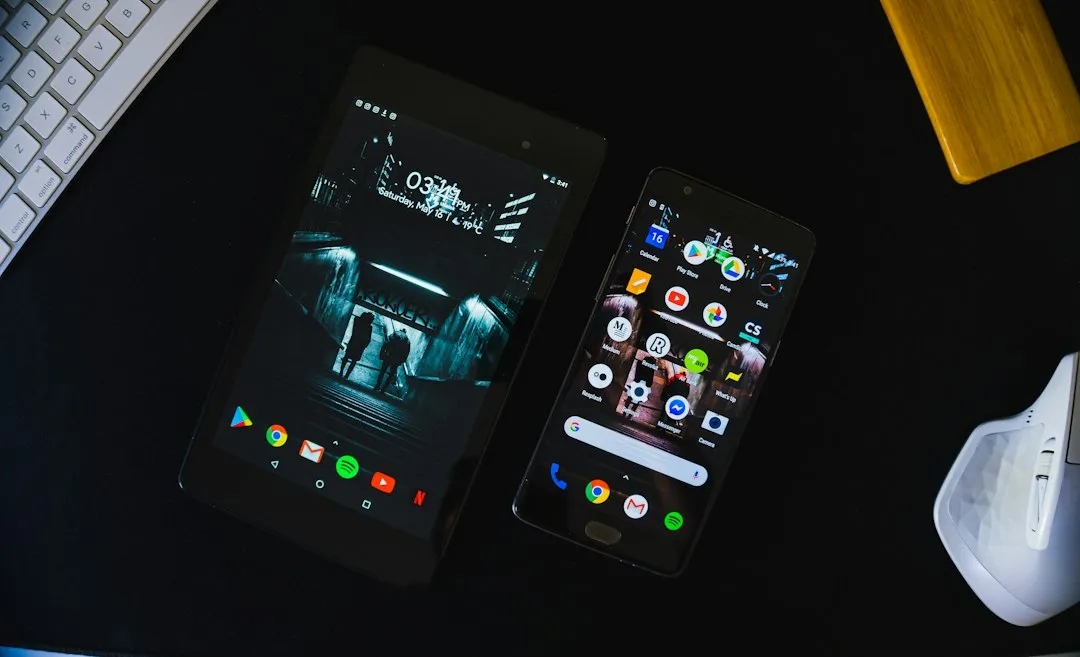
- Use real screenshots. Play asks for a 512×512 icon, a 1024×500 feature graphic and at least two phone screenshots.
Check on a real Android screen first
The bugs we found just before submitting were the kind a test suite doesn’t catch. On Finance Brain, a button read “Continue with Goog” because text was measured before our font loaded. Bold and italic text in lessons fell back to the system font, and a blank band sat above the tab bar. On Brain Defense, the game crashed as soon as play started, then showed only one corner of the map. All of these would have been in the first screenshots people saw. So check every lesson, quiz and results screen on a real phone, with your real content, before you take the screenshots.
The Data safety form has to match the app
The Data safety section asks what data the app collects, whether it’s shared, whether it’s encrypted in transit and whether users can delete it. Google compares the answers with what the app actually does, including the SDKs bundled inside it.
For a learning app, list every service it talks to before opening the form: sign-in, analytics, crash reporting, any AI service that generates or checks content. Be literal: sending a voice note to an AI service to be transcribed is sharing, even if nothing is stored. The fewer services the app uses, the shorter and safer this form is, which is one reason we keep analytics thin.
Privacy policy and account deletion
Every app needs a privacy policy link. The policy names the developer, says what’s collected and why, and gives a contact. Its URL lives in the listing and is checked again later, so it should never change. When we rebuilt our studio site, two live apps still pointed at old policy pages, and those addresses now permanently redirect to the new ones.
If learners can create an account, they must be able to delete it from inside the app and from a web page linked in the listing. Test that page signed out. On one of our launches, a signed-out visit to the deletion page went through sign-in and landed on the home screen instead.
Content rating and target audience
Content rating is a short questionnaire: answer it honestly and the rating follows. The target audience section asks whether the app is aimed at children, and if it is, stricter rules apply.
That question deserves care for an education app, because “learning app” and “children’s app” are easy to blur. Decide who the app is for before the listing is written, and make the listing, the privacy policy and the app itself agree. If your learners include children, plan for those stricter rules from the start rather than at submission, and get advice on what they mean for your product.
Give the reviewer a way in
If courses sit behind sign-in, the App access section asks how a reviewer gets past it. Give working test credentials or clear instructions. Sign-in with Google is fine as long as nothing after it depends on an invitation, a paid plan or data the reviewer won’t have. If some lessons are premium, make sure the access you give reaches what the listing describes.
The rest of the checklist
- Ads declaration: whether the app shows ads at all.
- Target API level: Google raises it every year, so an app left untouched eventually can’t be updated until it’s brought up to date.
- App bundle and signing: new apps upload an Android App Bundle, Google holds the signing key, and the upload key must be kept safe. Each of our apps has its own.
- Testing for new personal accounts: a closed test with at least 12 testers opted in for 14 days in a row before production access. Organization accounts are exempt. Start organizing testers early.
Then wait
Review usually takes a few days, and longer for new accounts or sensitive categories. Google doesn’t promise a time, so don’t schedule the launch announcement for the day you submit.
If you have a learning product on the web and want it on Android, our education app development page covers how we take apps from build to store.